
See every job across your buildings in one list, with its owner and status
Repair, maintenance and inspection jobs are assigned to teams. Who is on which job, and at what stage, is visible at a glance; every job closes with at least one photo.
What a job looks like
The job below is an example of how a job in this sector would look in Ekiplio. It is not a real customer or entry.
Building common area inspection
An inspection round is made through the common areas of a residential complex. Issues are ticked off and the job closes with at least one photo.
Checklist
- Tick off the entrance, stairs and car park
- Tick off the lighting and door checks
- Write anything missing as a comment
- Take a photo before finishing the job
Suggested job type setting for this job
A job type decides which proof a job asks for in the field. A reasonable starting setting for this job:
Why this setting. Inspections and small maintenance jobs are many and quick. The location stamp is off, every job closes with at least one photo, and no signature or approval is asked; the job completes directly when finished. For jobs that need a customer signature, you define a separate job type.
- Require a location stamp when starting and finishing
- OffOne-time location when starting and finishing the job
- Minimum proof photos
- 1 photoProof photos needed to finish the job
- Require a customer signature
- Not requiredCollected together with a name
- Require lead approval before completion
- Not requiredA manager or team lead decides
- Email the report to the customer when completed
- OffPDF report, once the job is completed
These are examples; each business defines its own job types. A manager can change job types at any time; open jobs carry on with the setting they were created with.
What appears in the PDF report
Job history at your fingertips
Every completed job stays on file with its customer, address and photos. When someone asks what was done for a building, you look at the job entries.
- Start and finish stamps show the time of the job
- The photo grid gathers the photos taken on one page
- The PDF report is shared or downloaded from the app
The PDF report is generated in the app when the job finishes; what changes from sector to sector is the job type settings.
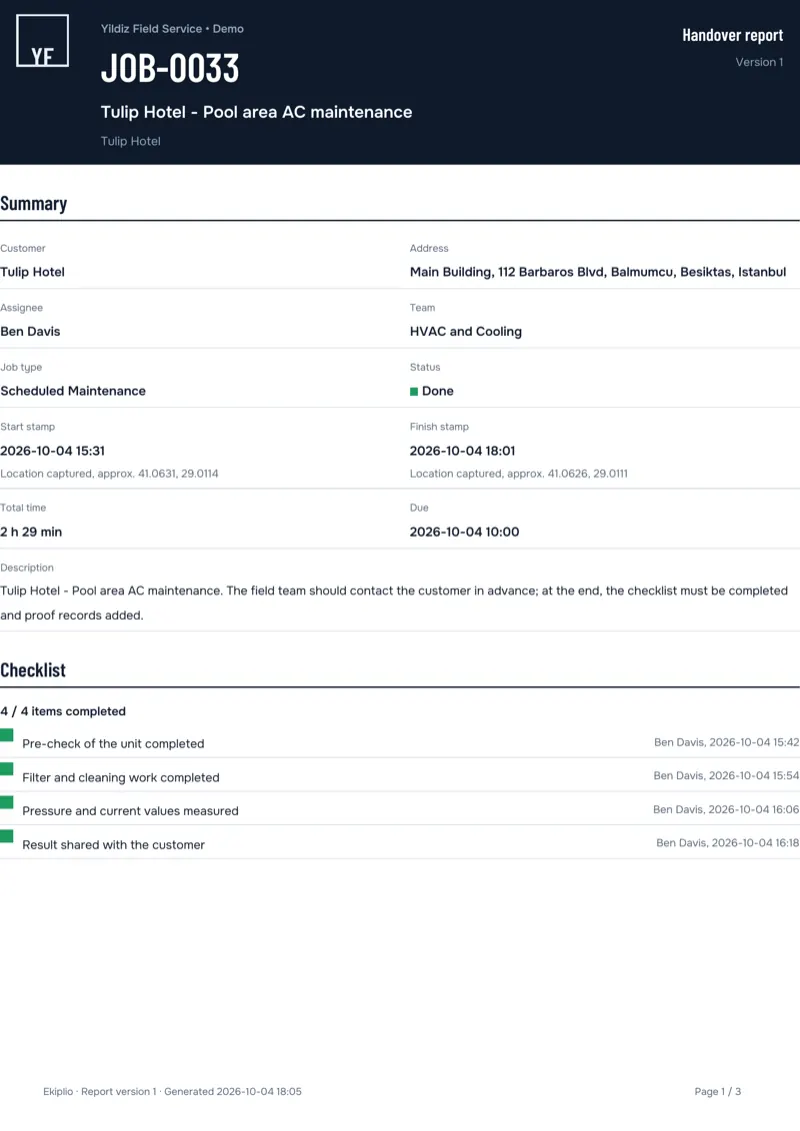
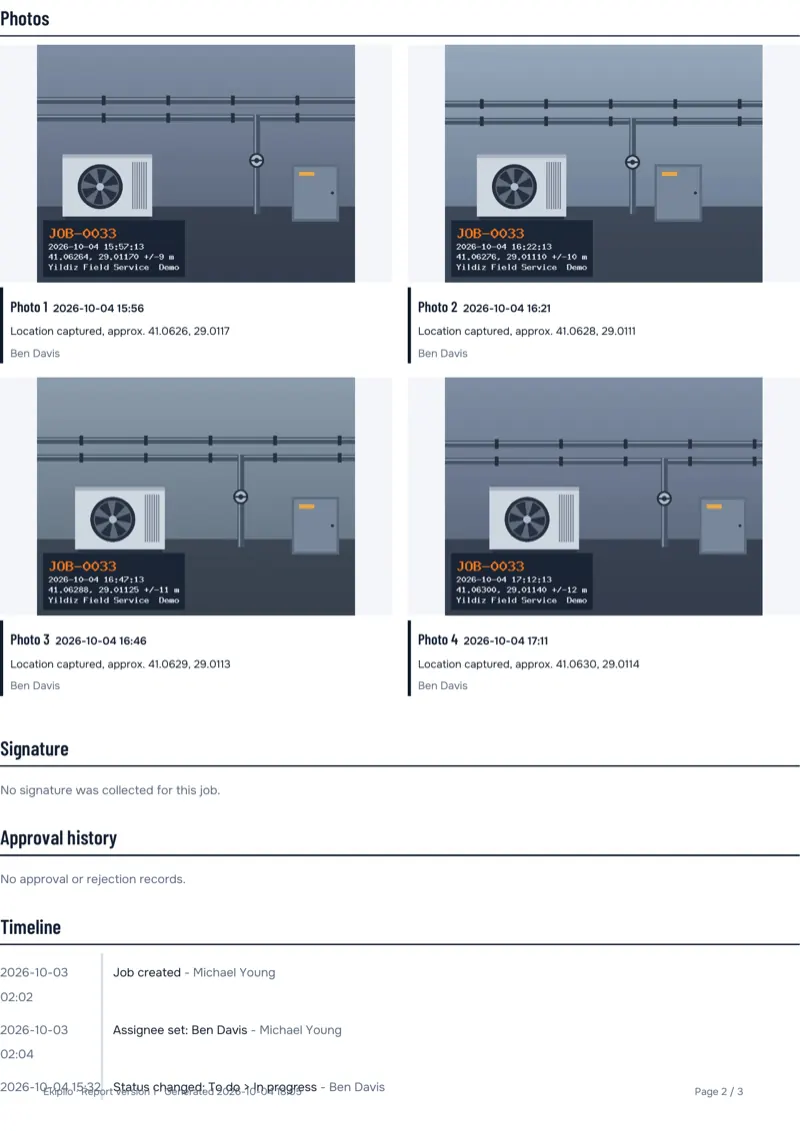
Sample PDF report (demo data). Content varies by sector.
How the team works
The job is assigned
A manager or team lead creates the job and enters the assignee and due date. The assignee is notified.
Proof is collected on site
The assignee starts the job, takes photos, collects a signature if required and finishes the job. Location is taken only at these moments, once each time.
The PDF report is ready
When the job completes, a PDF report is generated. A manager follows the team's work on the reports screen.
Frequently asked questions
Can I manage several buildings and teams?
Yes. Customers and addresses are separate entries; you can define several addresses under one customer. Jobs appear on a kanban board per team, and one person can belong to several teams.
How do I see overdue jobs?
Managers see overdue jobs on the reports screen; a team lead sees them for their own teams. As a due date approaches, 24 hours and 1 hour before, the assignee gets a notification.
Can I turn the location stamp off?
Yes. The location stamp is a job type setting. When it is off, no location stamp is created at the start and finish steps. Location is never tracked in the background.
Do staff see other people's jobs?
By default staff see their own team's jobs read-only; a business setting can restrict this to 'only their own jobs'. Changes and comments are made only on their own jobs.
Other sectors
- HVAC and boiler serviceService and repair jobs close with a customer signature.
- Elevator maintenanceRoutine maintenance visits are logged with photos and stamps.
- CleaningWhich area was cleaned, and when, is clear from the photo.
- Construction sitesSite jobs stay on file and the office sees their status.
- Appliance repairA repair done at the customer's home ends with a PDF report.
Try it with your own work
Explore the live demo without signing up; when you are ready, open your business for free on the web.