Assign the job, prove it in the field, deliver it with a PDF report

Ekiplio's scope is deliberately narrow: a field team opens, runs, proves and delivers a work order.

Everything about a job in one place

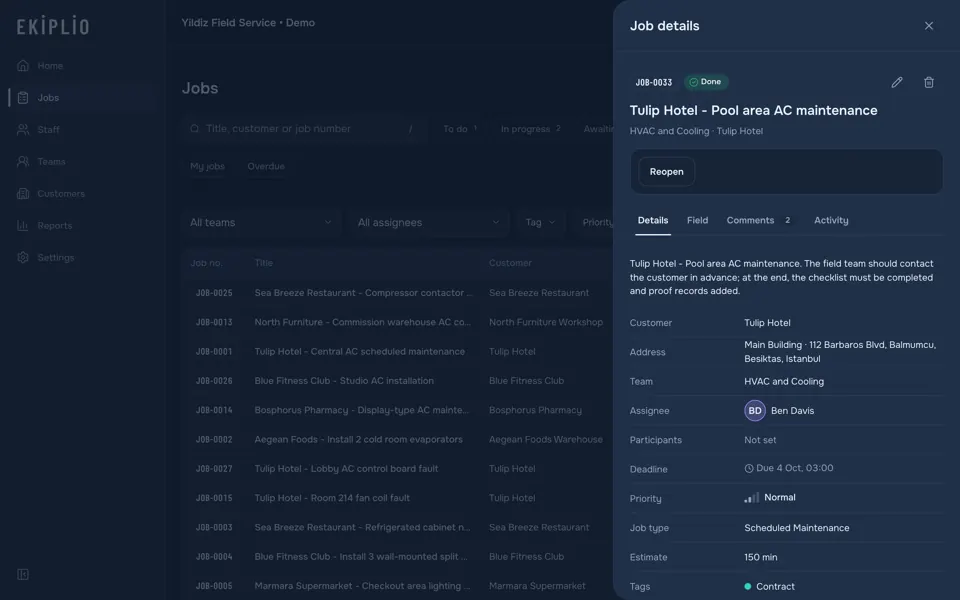
Title, description, assignee, participants, priority, labels, deadline, estimated time, job type, customer and address, and a checklist: everything about the job is in the same place.

Every job has a single assignee; comments are written and files attached on the job.
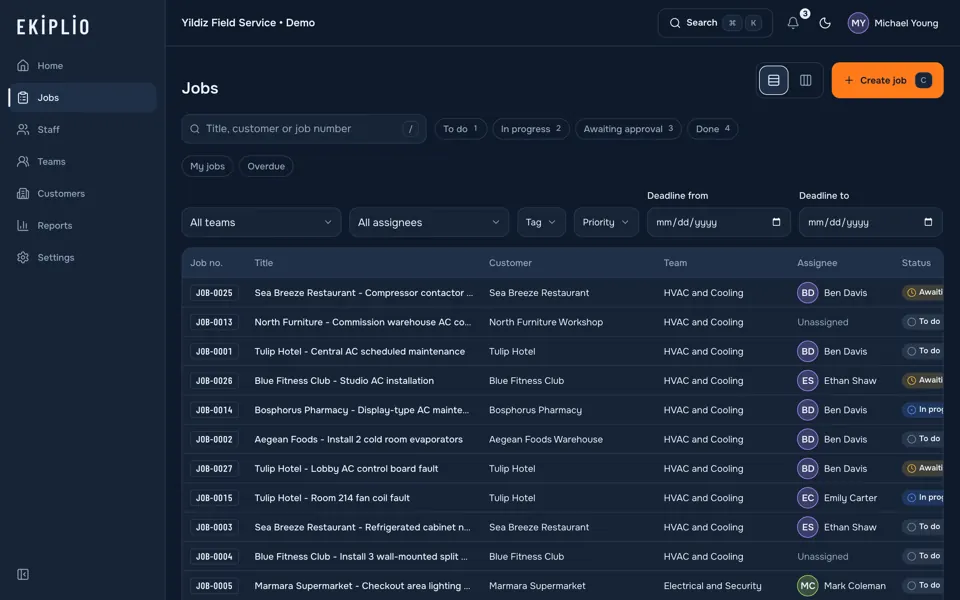
Job list showing every job's status in one view
Job list

Job detail showing a job's description, customer and address, assignee, due date, priority, tags, field requirements and times in one place

Job detail

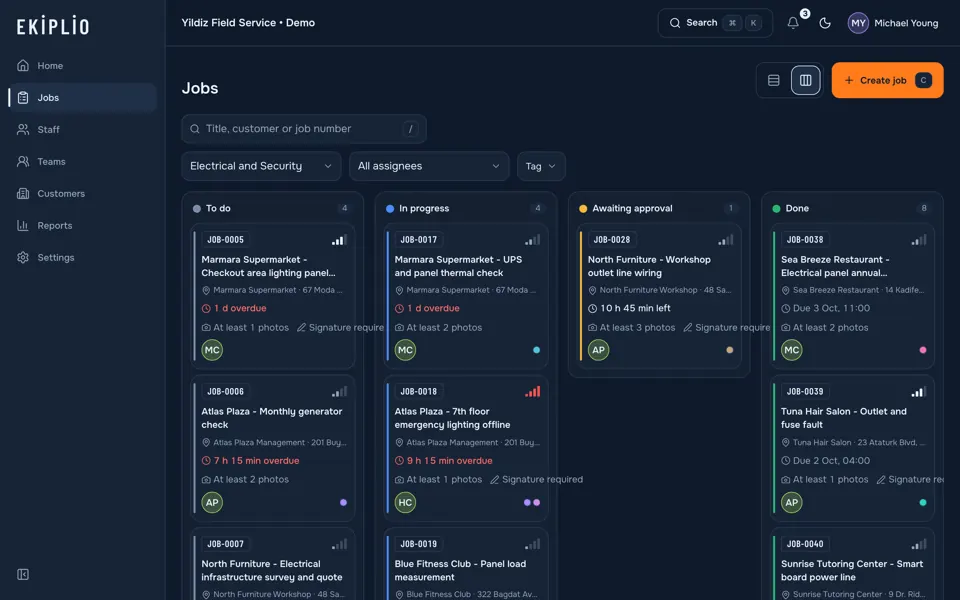
See which job is where, in a list or on a board

Jobs appear in a list or on a kanban board per team. Dragging a card changes its status; on an invalid move the card springs back and tells you why.

There are four statuses: to do, in progress, awaiting approval, done. A business can rename them as they appear.

Kanban board showing jobs in status columns

Proof is captured in the field as the job happens

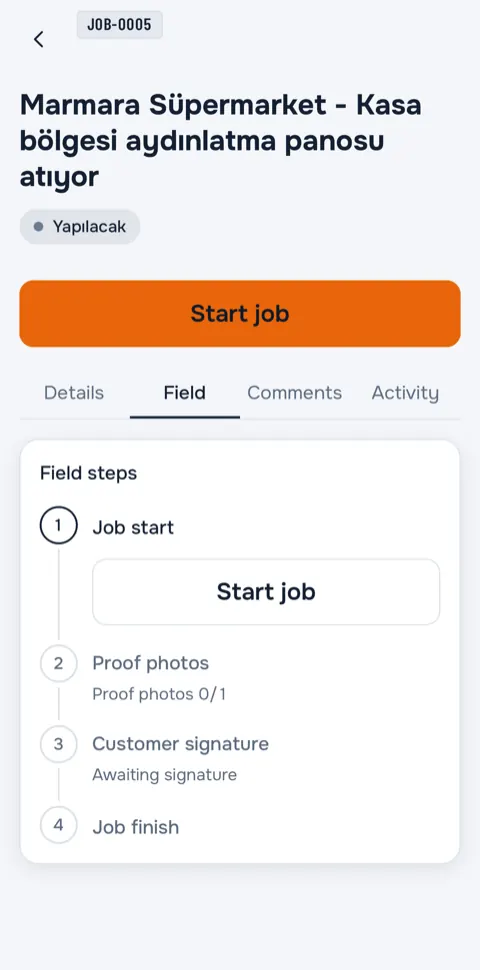
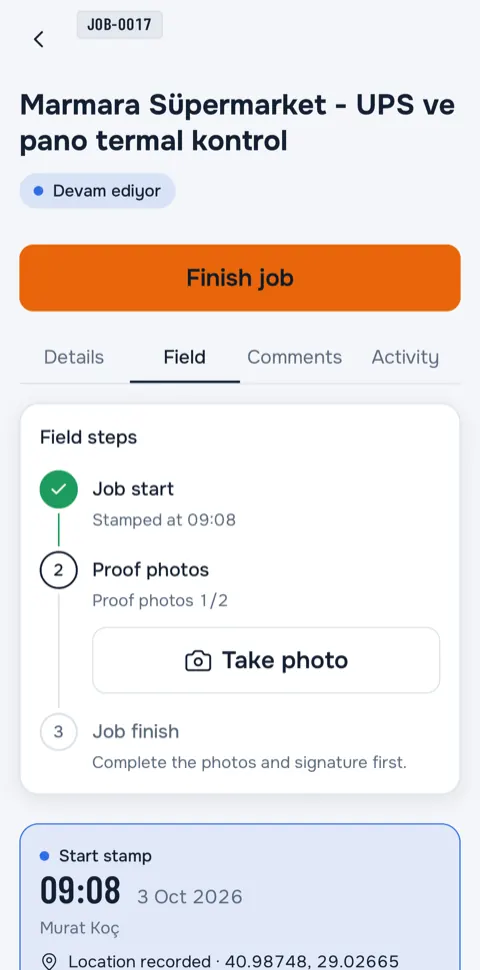
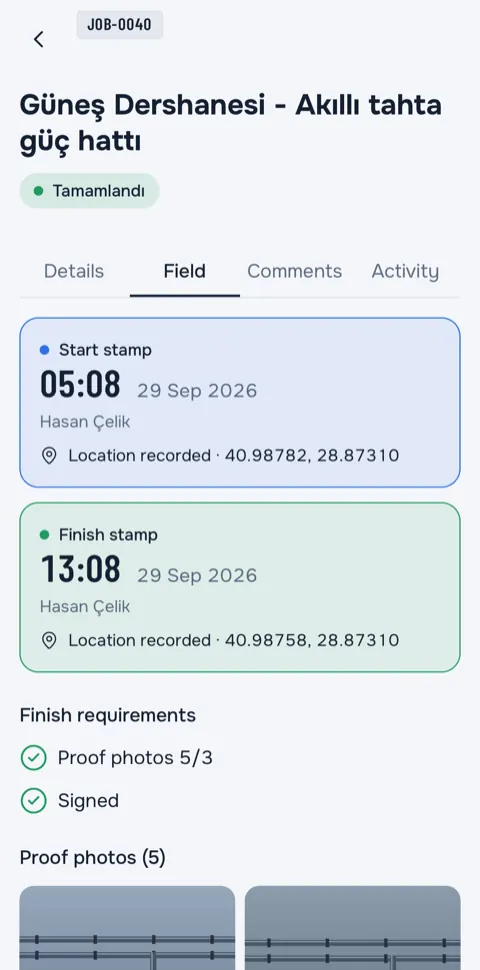
The start and finish moments are stamped with the time and, with your permission, the location; photos come only from the camera, and the customer's signature is saved with the signer's name.

  • The watermark carries the job number and date-time, and the location when location permission is granted. It is applied on the device.
  • Location is taken only when starting, finishing, taking a photo and collecting a signature, and only once each time. If you deny permission the job still starts, the stamp is marked as without location and the manager can see it.
  • Only the job's assignee can stamp and collect the signature.
  1. Starting a job on the phone

    1Start the job

  2. Adding proof photos on the phone

    2Photo

  3. Signed field record on the phone with the customer's signature saved to the job together with the signer's name, date, time and location status

    3Signature

A PDF report in hand when the job ends

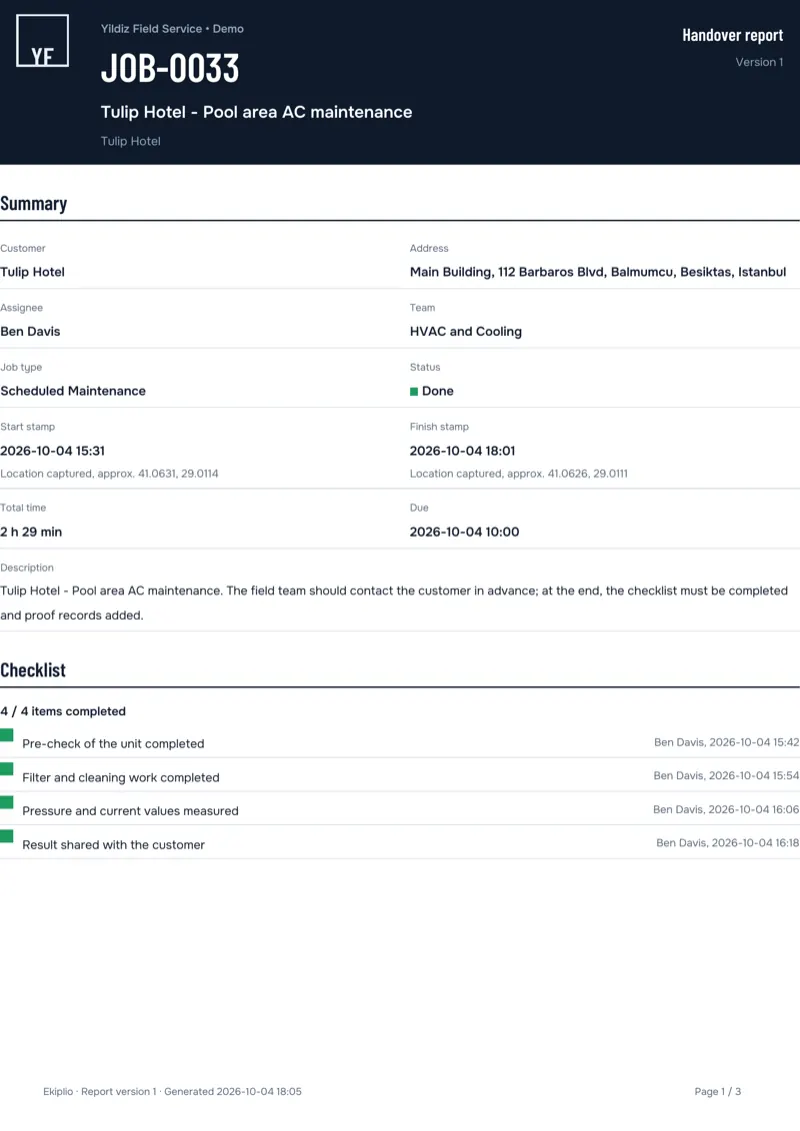
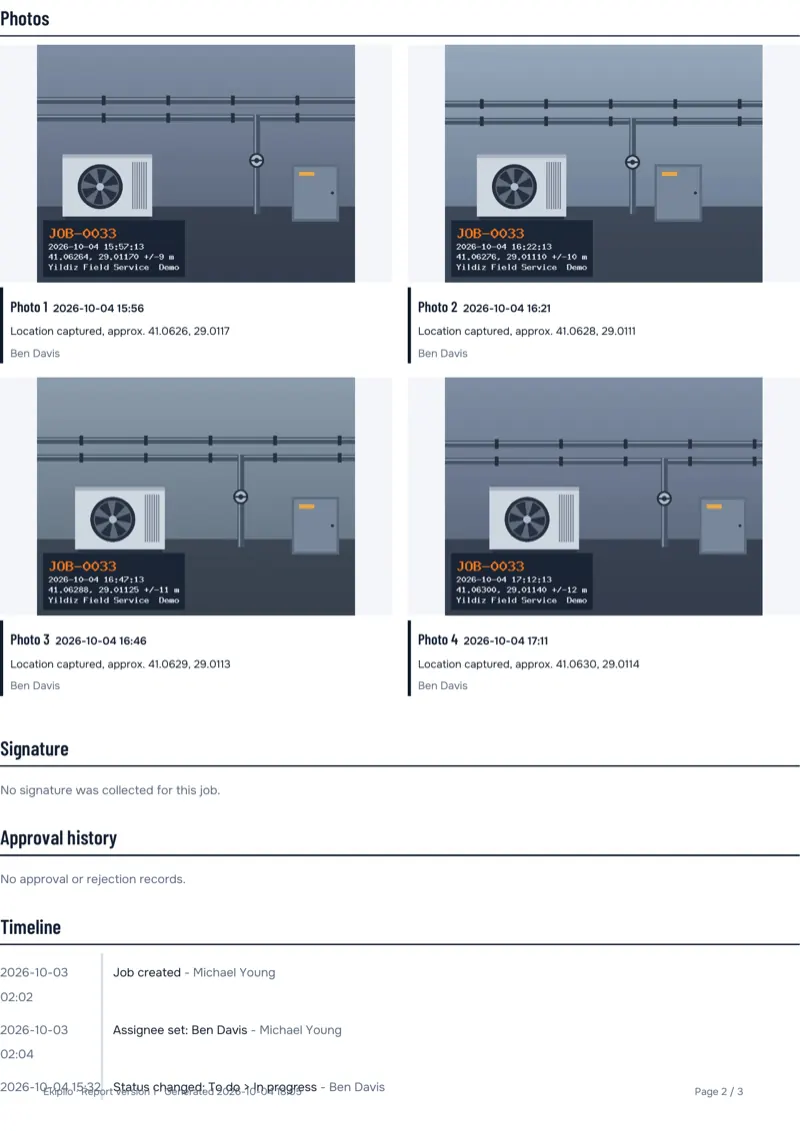
When a job ends, a PDF report is generated in the app: the cover carries the job number, title and customer; inside are the start and finish stamps, a photo grid, a signature block and a timeline.

You share or download it from the app. Automatic e-mail to the customer is a job type setting; leave it off if you do not want it.

  • First page of a completed job's PDF report
  • Second page of a completed job's PDF report

The team's work on one dashboard

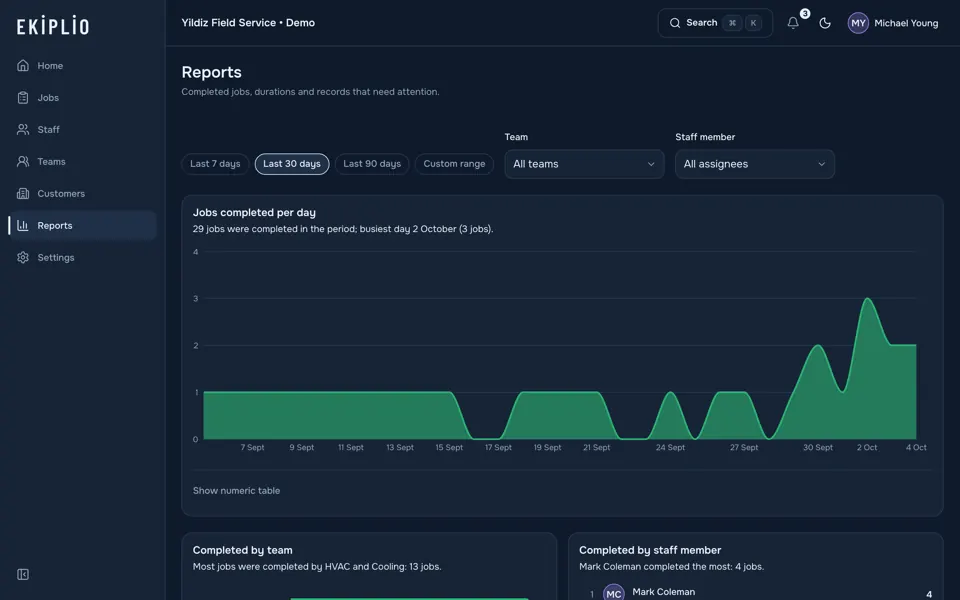
Jobs completed per day, results by team and staff member, average durations and overdue jobs on one screen. A manager sees the whole business; a team lead sees the teams they lead.

Reports screen showing jobs completed per day, results by team and staff member, average durations and overdue jobs on one dashboard

Work does not stop when the connection drops

Start, finish, photo and signature actions are queued when there is no connection and sent in order when it returns.

Each action keeps the device time and the server time separately; order is preserved, and photos and signatures are queued too.

  • Device timeWhen the action happened on the phone
  • Server timeWhen the action reached the server

Updates reach the right person on their own

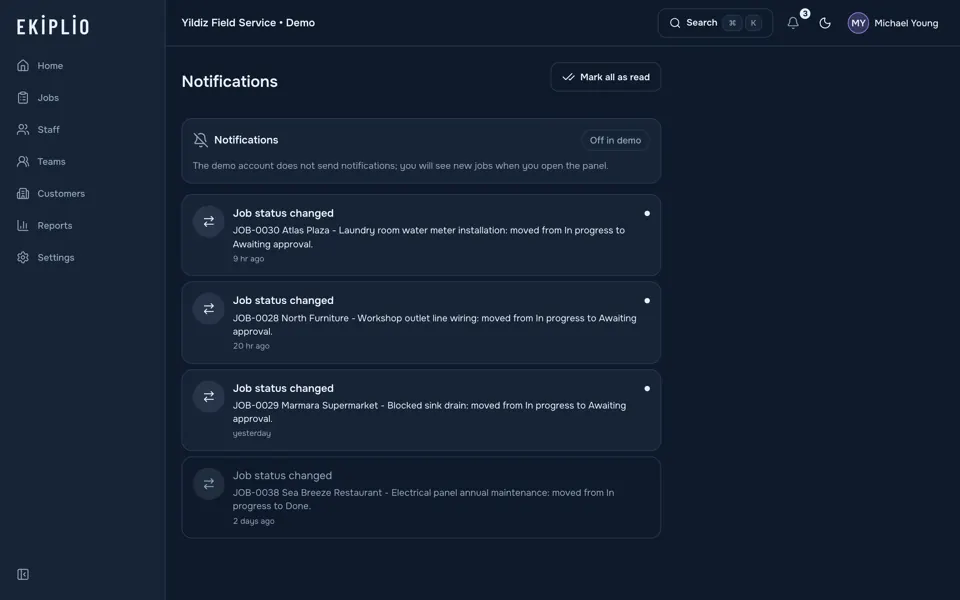
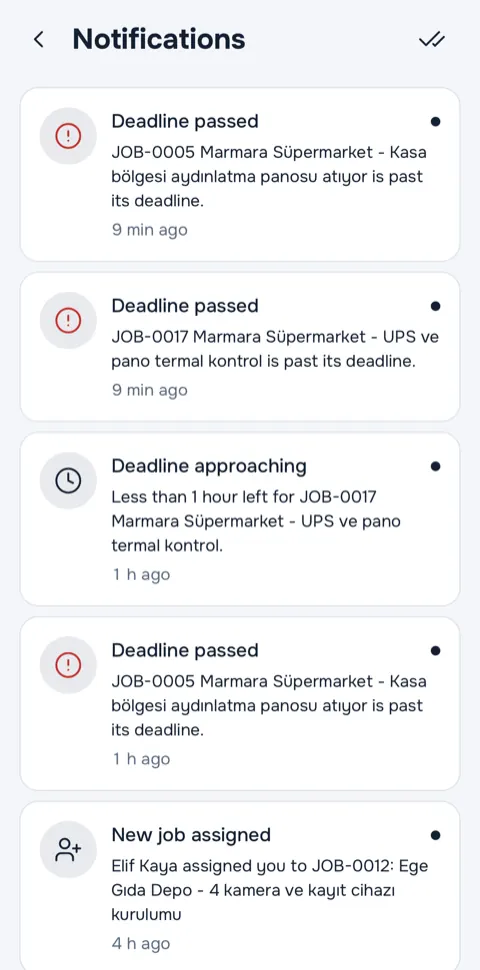
Your phone gets a notification when a job is assigned, when a job's status changes and when a deadline is near; deadline notifications go out 24 hours and 1 hour before.

  • Push notifications go to the phone and are also listed inside the app.
  • Notification permission is requested at the first job assignment, with an explanation.
Notifications screen announcing job updates
Notifications screen on the phone

Every role works within its own permissions

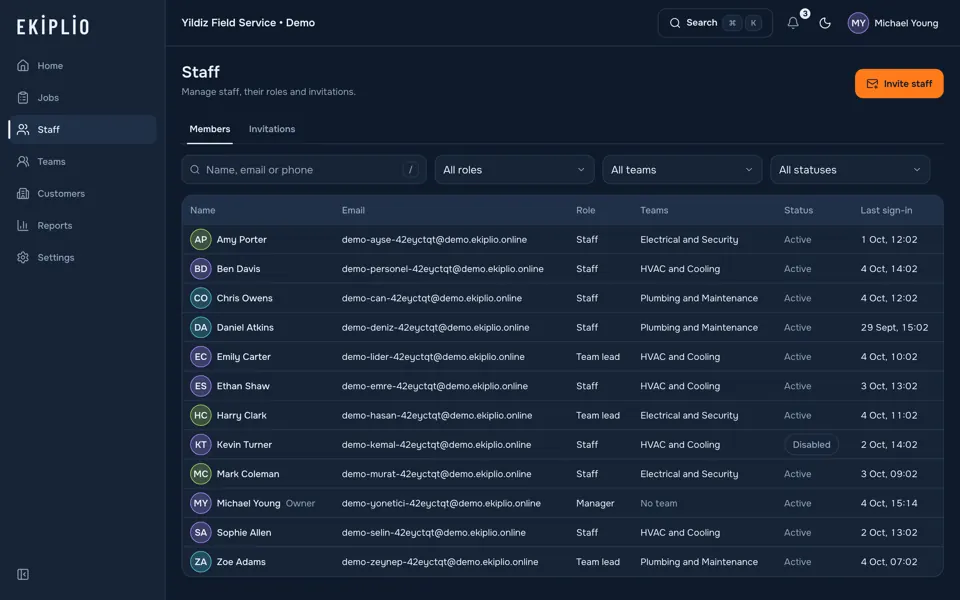
The web panel is open to every role, and the interface adapts to your role. Staff join with an invite link or code.

Manager
Runs the whole business: staff, teams, customers, reports and settings.
Team lead
Manages the jobs and the kanban board of the teams they lead and decides on jobs awaiting approval.
Staff
Works on the jobs assigned to them. The next job has a single button: start the job.
  • One person can belong to several teams.
  • A business setting can limit staff to seeing only their own jobs.
Staff screen showing the team members

One account on phone, tablet and web

Phone or tablet in the field, the web panel in the office: the same account and the same entries.

  • iPhone

    The field flow and today's jobs in your pocket.

    Coming soon
  • iPad

    List and details side by side; kanban shows all four columns at once.

    Coming soon
  • Android

    The same app on Android phones.

    Coming soon
  • Web

    In the browser, for every role.

When the Android app is published in the store, its link will appear in this section.

Subscription is per business

Plans differ only by the number of users; every feature is in every plan, and you start on the Free plan.

Purchases are made only in the mobile app, by the manager; on the web the subscription status is read-only.

Plans and subscription details

See these features for yourself

Browse the live demo with no sign-up; when you are ready, open your business for free on the web.

Try the live demo

Which role would you like to look at? A temporary demo business filled with sample data is opened.