
From sign-up to PDF report, step by step
Get your first job into the field in five steps.
Five steps
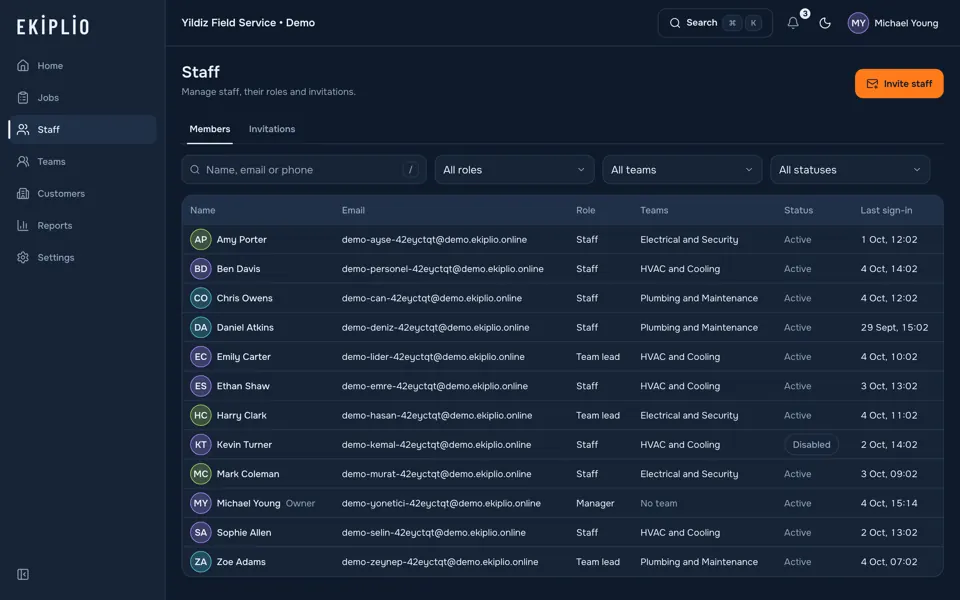
Create your business, invite your team
You set up your business yourself; whoever creates the account becomes the manager and the owner of the business. You send staff an invite link or code.
- Role
- Manager
- Screen
- Web panel, Staff
Create and assign the job
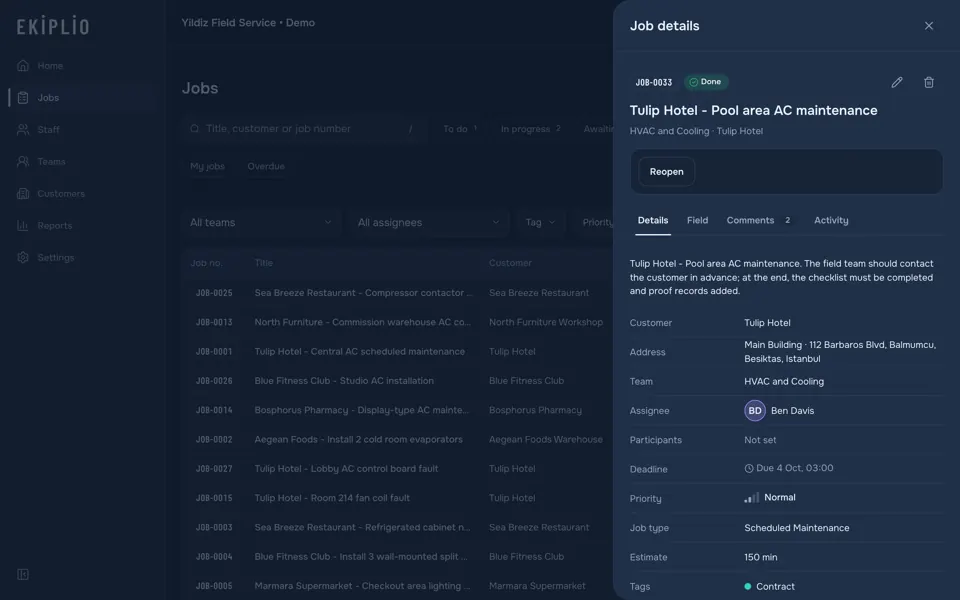
Enter a title, customer and address, assignee, deadline and priority. The job type sets the location stamp, photo count, signature and approval requirements. The assignee gets a notification.
- Role
- Manager or team lead
- Screen
- Web panel, Job detail
Start in the field, take photos, collect the signature
The assignee starts the job, takes the photos, collects the customer's signature and finishes the job. The start and finish moments are stamped with the time and, with your permission, the location; without a connection, actions are queued.
- Role
- Staff (the job's assignee)
- Screen
- Mobile app, field flow
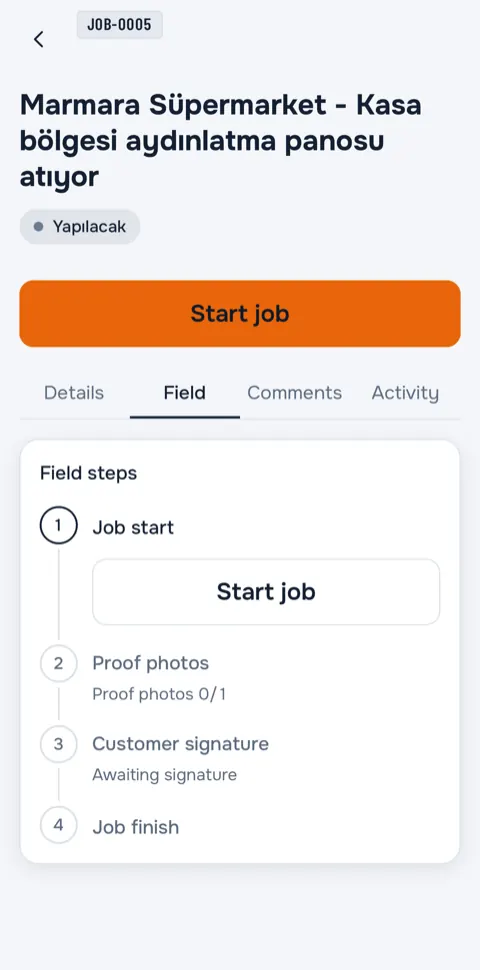
Start the job
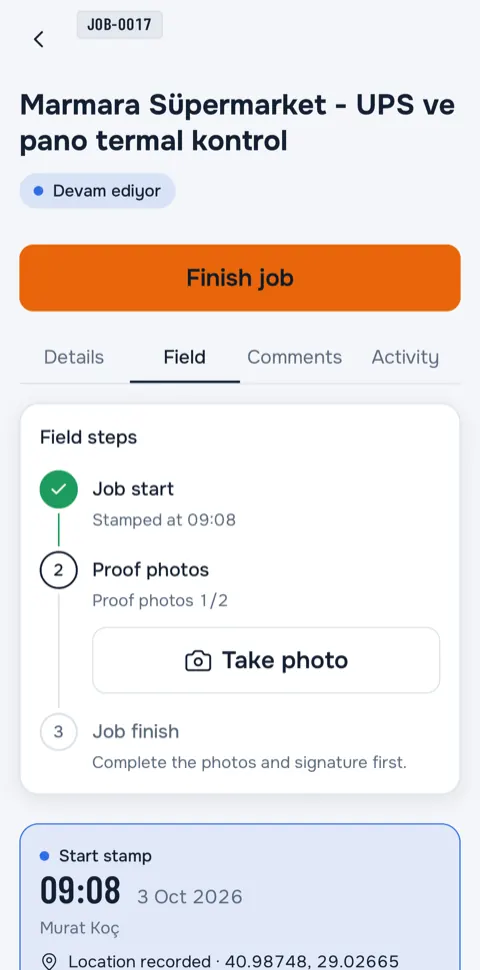
Photo
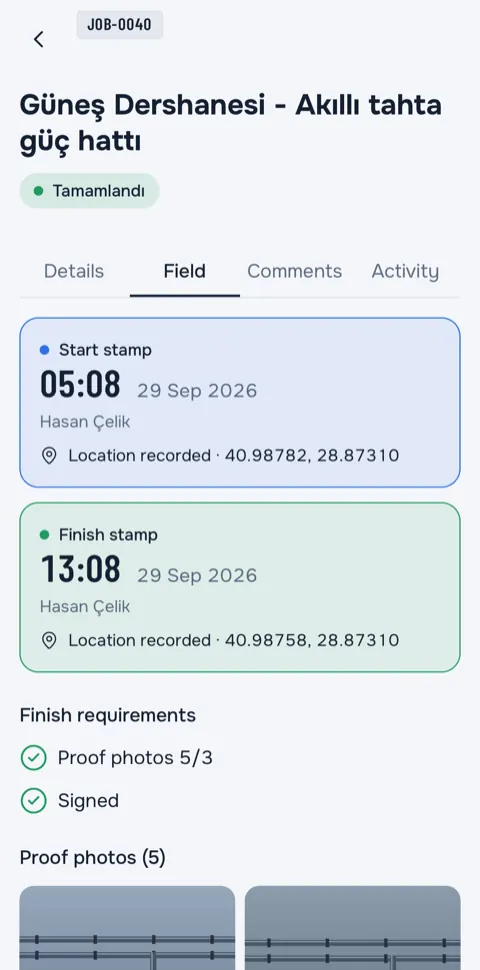
Signature
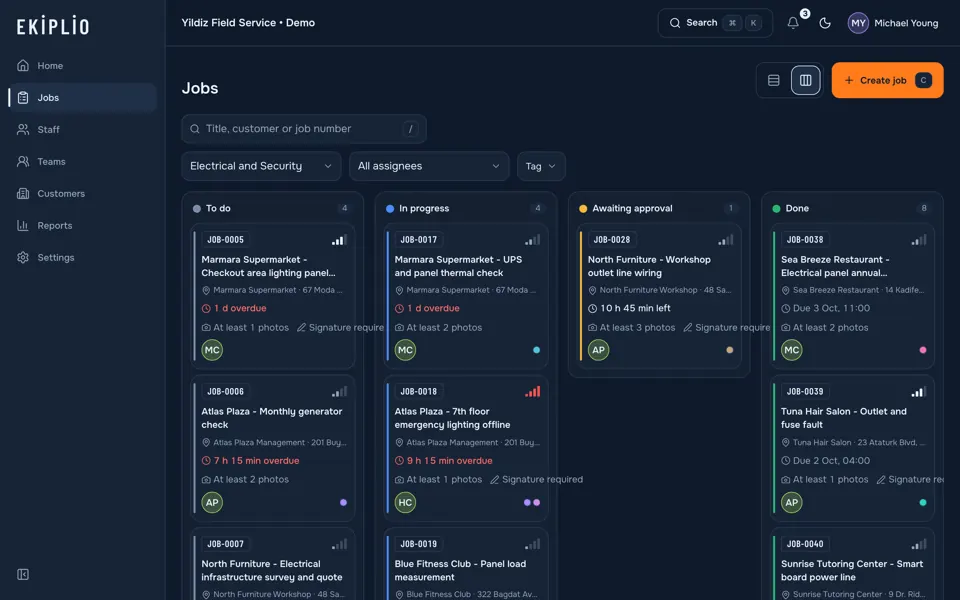
Decide, if approval is needed
If the job type asks for approval, the job moves to awaiting approval; a team lead or manager approves it or rejects it with a reason. If approval is not needed, the job completes directly.
- Role
- Team lead or manager
- Screen
- Web panel, Kanban
Share the PDF report
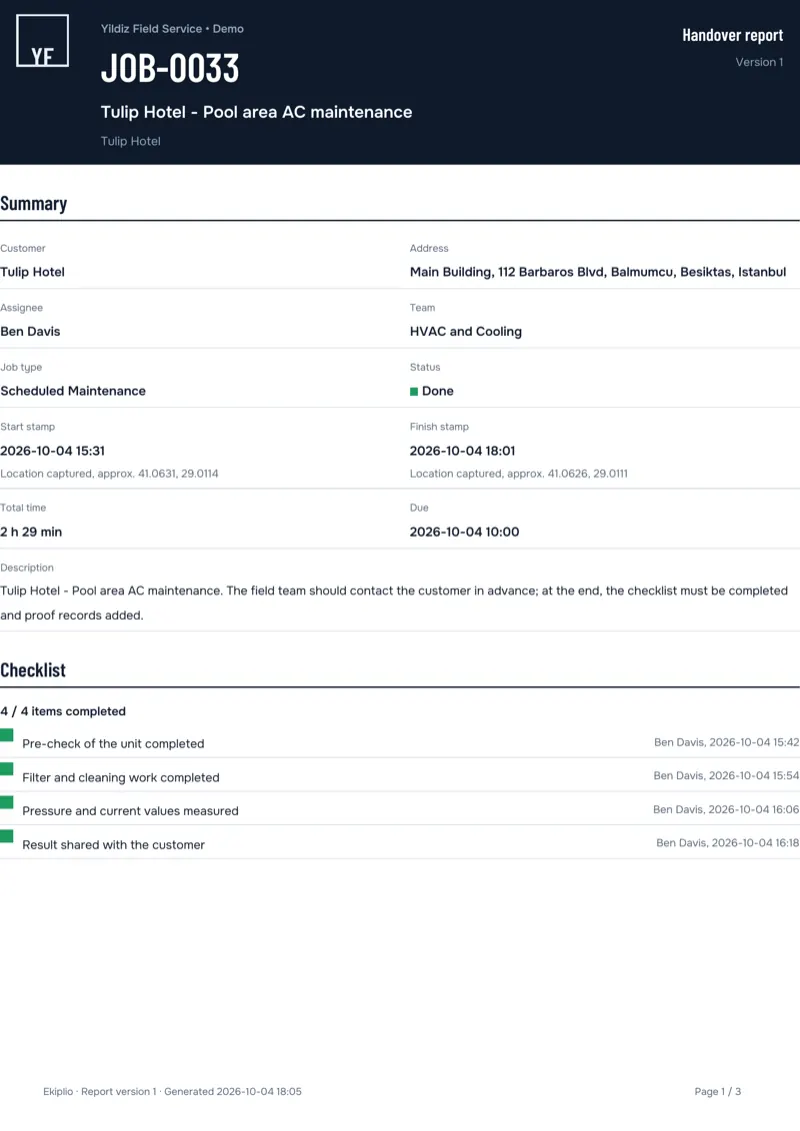
When the job completes, a PDF report is generated in the app; you share or download it from there. Automatic e-mail to the customer is a job type setting.
- Role
- The job's assignee, team lead or manager
- Screen
- PDF report
A job's journey
From the moment it is opened to the moment it completes, a job moves in this order.
The job is opened
The job is created as to do and an assignee is set; the assignee gets a notification.
The job is started
The assignee starts the job, it moves to in progress and a start stamp is taken.
Proof is collected
Photos and the customer's signature are added. The job cannot be finished until the required photos and signature are in.
The job is finished
A finish stamp is taken. If approval is needed the job becomes awaiting approval and someone decides; if rejected, the job goes back to in progress with the reason written. If approval is not needed, the job completes directly.
The job is completed
The PDF report is generated and can be shared. Every event on the job is written in order to the activity tab in the job's detail.
One account on mobile and web
Phone in the field, web panel in the office: the same account and the same entries. The web panel is open to every role.
Sign-up and invitations
A manager creates the business. Staff join with an invite link or an invite code.
Have an invite link?
Invite links start with ekiplio.online/davet. With the app installed the link opens it directly; otherwise store links are shown.
Examples by sector
See a sample job, the suggested job type setting and the PDF report for each sector.
- HVAC and boiler serviceService and repair jobs close with a customer signature.
- Elevator maintenanceRoutine maintenance visits are logged with photos and stamps.
- CleaningWhich area was cleaned, and when, is clear from the photo.
- Facility managementJobs across buildings are tracked in one list, each with an owner.
- Construction sitesSite jobs stay on file and the office sees their status.
- Appliance repairA repair done at the customer's home ends with a PDF report.
Ready to try your first job?
Browse the live demo with no sign-up; when you are ready, open your business for free on the web.